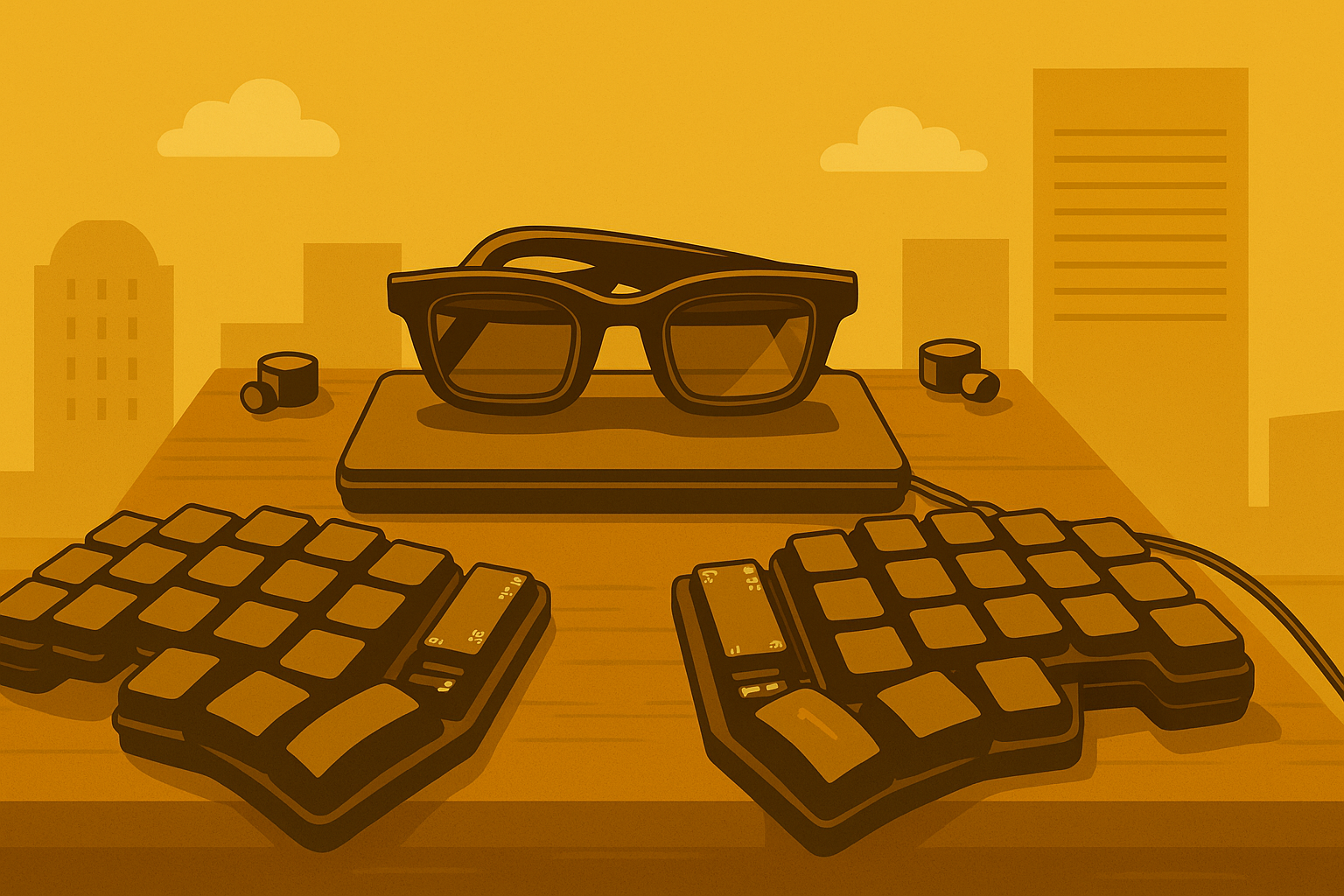
One device to rule them all.
Can you really work, play, and communicate using a single device? With the right setup, you can.
I have been on a quest for many years. As a frequent traveller and someone who doesn’t like being stuck behind a desk, it has long been my goal to work literally anywhere, without feeling frustrated that I’d be more productive at a desk or workstation.
This doesn’t just mean being able to set up somewhere to work. It means working exactly where I am, whether in a park, on public transport, in a lounge, or in bed—without needing to find a café or table to plug in a laptop.
Plus, why should I carry around multiple devices? Flagship phones today have more than enough computing power to handle most productivity tasks, yet we still lug around two or three devices—phone, laptop, tablet—that all essentially have the same components in different form factors.
The reason? Us, and how we interact with our devices. Sometimes we favour portability; slipping a device into a pocket to pull out at whim. Other times, we want a bigger screen to comfortably view content at scale.
And when we need to work, we need an interface that’s conducive to getting things done. Touchscreens rarely offer this alone.
Of course, hybrids abound: tablets with keyboard covers, convertible laptops, bigger phones, smaller tablets, and now folding phones.
All of these carry compromises, and none of them satisfy the complete range of use cases for most people. Carry a foldable, and you still need a laptop for real work. Use a convertible laptop, and you’re still carrying a phone everywhere.
Modularity and AR glasses
What if instead of forcing all three main components — processor, larger screen, and keyboard — into one device, we separated them and connected them only when needed?
This is the idea behind portable screens and Lapdocks. While they reduce the waste of owning multiple computing devices, they don’t fully solve portability.
But what if you could fold up a screen and carry it in your pocket or a small bag? If you haven’t tried the latest generation of wearable displays (a.k.a. AR glasses), you might be surprised to learn that you can.
Devices such as XREAL and Viture are essentially oversized glasses that project a large screen in front of you. The “screen” is typically 1080p (1920×1080, Full HD) and, depending on the projection distance, feels like a 40-inch monitor or a 70–100-inch TV.
If your device can connect to a USB monitor, you can likely connect it to these glasses and immediately use them as a monitor or TV replacement.
That means you can:
- Use them as a second screen for your laptop.
- Plug them into a gaming console for immersive gameplay.
- Or—our use case—turn a phone into a large-screen media device or even a full desktop computer.
Desktop computing on phones
In 2017, Samsung introduced Samsung DeX with the Galaxy S8. Since then, it has been available on every S, Note, and Z Fold device.
Essentially, when you connect a flagship Samsung phone to an external screen, it launches a desktop-like environment complete with a start menu, taskbar, desktop icons, and windowed apps.
Other manufacturers (Motorola and Huawei) offer similar experiences, though not as mature or well-tested as Samsung DeX. The newly released Android 16 also includes a native desktop mode, meaning that in the coming year most new Android phones should support desktop computing.
Put two and two together: connect wearable displays like the XREAL One to a phone that supports desktop mode (such as the Galaxy S25 Ultra), and you now have a powerful computing device with a monitor-sized display and familiar desktop experience—fitting in your pockets.
Add a portable keyboard and mouse, and you’ve got a complete computing setup.
Keyboard and mouse
I personally use a tiny, custom split keyboard. It’s a nerdy choice, but it works perfectly for me. I can program it exactly how I want, the halves fit neatly back-to-back in my shoulder bag, and it gives me the ergonomics, feel, and clicks of a full-size keyboard. I can even control a mouse pointer with it, so I don’t need a separate mouse or trackpad.
But this isn’t for everyone. It takes time, money, and practice to find and master a keyboard like this.
Fortunately, there are great alternatives that are still portable and enjoyable to use:
- The Lofree Flow: an excellent low-profile mechanical keyboard that types beautifully, is very portable, and looks premium.
- Logitech MX Keys Mini: a cheaper, widely available option with laptop-style keys.
- Apple Magic Keyboard: works well but is clearly geared to the Apple ecosystem.
There are also foldable keyboards designed for mobile use. These pack brilliantly and often include a touchpad. However, they’re usually cheaply built, with smaller layouts and awkward key placements to accommodate folds. In my experience, they’re fine for emergencies or occasional use, but not for extended work.
If you want to try one, the best I’ve found (and I’ve tried many) is the iClever BK03, sometimes sold under different brand names.
Unless your keyboard has an integrated touchpad—or you’re comfortable using “mouse keys” then you’ll also want a mouse.
- The Logi MX Anywhere is portable, comfortable, and rechargeable.
- Microsoft’s Surface Arc Mouse is a premium option that packs flat, though it lacks side panels in use.
Power management
The current generation of AR glasses don’t have their own batteries and draw power from the device they’re connected to. This drains the host device faster and occupies what’s often its only USB port.
For more than a few hours of use, you’ll need another way to keep the device charged.
You might think wireless charging is the answer but it often isn’t. Older chargers supply only 7W, insufficient to keep up while using glasses. Qi2 chargers should provide enough power, but in my experience with the Samsung S25 Ultra, fast charging won’t engage while the glasses are in use, likely to prevent overheating. And overheating is a real issue: even at lower wattages, the phone can run hot enough to trigger forced app shutdowns.
Some AR glasses have companion devices that help. For example, XREAL’s Beam Pro adds a charging port and expands functionality. But ideally, we want to avoid depending on add-ons.
My solution is a USB hub that supplies power delivery while letting the glasses stay plugged in. The XREAL Hub works perfectly for this and is compact to carry.
There are also more advanced hubs with both PD (power in) and DP Alt (video out), plus extra USB ports for peripherals like USB keys or microphones. These expand possibilities but may disable certain features of the glasses (e.g., built-in mic).
Getting the best out of Android desktop computing
Now that we’ve assembled a truly portable hardware setup, let’s turn to software. While I’ll focus on Samsung DeX, most of these principles apply to similar systems.
There are compromises. Android lacks desktop-optimised software, and mobile apps are built for small screens with touch input, often limiting features.
The OS itself also restricts apps for security, consistency, and battery life. Familiar desktop patterns may not exist, or they require a different mindset. For instance, while a file system exists, most apps overlay their own system, and by default can only access files they create. Instead of directly managing files, you’ll often share them between apps (with some exceptions).
Thinking thin
If you’re my age, you might remember library terminals with blinking cursors waiting for commands. These “thin clients” connected to a more powerful computer elsewhere. They disappeared with personal computing but are re-emerging thanks to cloud computing and AI.
Mobile desktop setups are a perfect thin-client use case. Phones are powerful enough for most tasks, but intensive workloads or specialised software can be offloaded to remote machines.
This makes you less dependent on your device. It’s also more economical and environmentally sustainable, since hardware and compute resources are shared.
Using web versions of apps
The fastest way to boost productivity on a mobile desktop is to use apps with fully featured web versions. Many modern apps are web-based, even when wrapped as “native” desktop apps.
Just open them in a browser. Chrome and Samsung Internet both handle desktop mode well. Apps may push you toward mobile downloads, but usually you can bypass this by requesting the desktop version.
You can also “install” many web apps as PWAs (Progressive Web Apps). Installed PWAs run much like native apps and often gain extra permissions (e.g., notifications, file sharing).
Some excellent web apps I’ve personally tested in desktop mode:
Android apps that work well in desktop mode
Some native Android apps do shine in desktop mode. A few I recommend:
- Obsidian: Journaling and notes
- Xodo: PDF and document viewer/editor
- Shortwave: AI-powered email client
- Samsung Internet, which comes pre-installed on Samsung devices
Fallback to remote computing
Sometimes you’ll need to do things a mobile desktop can’t handle. In those cases, remote access to a traditional computer is invaluable.
- Windows: The Windows App connects via RDP, offering a seamless experience with a good connection.
- Mac/Linux: VNC works similarly. My favourite Android client is AVNC.
- Command line: Termux is a superb terminal emulator and Linux environment for Android. It supports a wide range of CLI tools (even Neovim) and can SSH into remote servers. You can even run a full Linux desktop if you like.
In the end, turning your phone into a true desktop setup is no longer a distant dream it’s already possible with today’s AR glasses, portable keyboards, and Android desktop modes. While there are still compromises, the combination of modular hardware and flexible software makes it easier than ever to work productively from almost anywhere. For those of us who value freedom from the desk, this approach represents not just convenience, but a glimpse into the future of truly mobile computing.
Get in early. My prediction is that within the next 5 years, wearable screens will become the way we interact with our devices.

